How to assign strategies to trades in TradeDiary
Create a clear strategy playbook, tag every trade with the setup you actually used, and compare which strategies produce consistent results.
Quick answer
Open Strategies from the TradeDiary side navigation and select New Strategy. Enter a Strategy Name and Description, then select Add Strategy. When you next open New Trade, choose that active strategy from the required Strategy dropdown and save the trade.
What is a trading strategy?
A trading strategy is a repeatable set of conditions that explains why you enter a trade, how you manage risk, and when you exit. It turns a vague idea such as “the market looked strong” into a defined setup that can be recognised, executed, and reviewed consistently.
In a trading journal, a strategy works like a category for your setup. Each trade assigned to that strategy contributes to its performance history. Over time, you can compare strategies instead of mixing every trade into one overall P&L number.
Entry conditions
The market structure, trigger, confirmation, and context required before entering.
Risk rules
Where the idea becomes invalid, position sizing, stop-loss, and maximum risk.
Exit process
Profit targets, trailing rules, time-based exits, and conditions for closing early.
Why assign a strategy to every trade?
If trades are not tagged, a profitable result cannot tell you whether the setup was repeatable, and a losing result cannot tell you which approach needs work. Strategy assignment connects execution data with the idea behind the trade.
What strategy tagging helps you discover
- Which setups make money: compare net P&L across named strategies.
- Where consistency breaks: identify strategies with unstable win rates or risk/reward.
- Whether you have enough evidence: see the number of trades behind each result.
- Random versus planned trades: separate repeatable setups from unstructured decisions.
A strategy should describe the setup you actually traded—not the strategy that would make the result look better afterward.
What should you write in a strategy?
Use a short, distinct name and a description that lets your future self understand the setup without relying on memory. Avoid broad names such as “Good Setup” or “Intraday.” The name should separate this strategy from the others in your playbook.
Opening Range Breakout — 15 Minute
Trade only after price closes outside the first 15-minute range with above-average volume. Enter on a successful retest, place the stop beyond the opposite side of the retest structure, and avoid entries directly into a major daily level.
Useful description details
- Instrument and market conditions
- Entry trigger and confirmation
- Stop-loss or invalidation logic
- Target and trade-management rules
Descriptions that cannot be tested
- “Buy when it looks bullish”
- Several unrelated setups under one name
- Rules changed after every losing trade
- A name based only on the final outcome
Create a strategy in TradeDiary
Set up the strategy once, then reuse it whenever the same setup appears in your trading.
Navigate to the Strategies page
Select Strategies from the left-side navigation. The page shows your existing strategy performance, Active Strategies, and the My Strategies table.
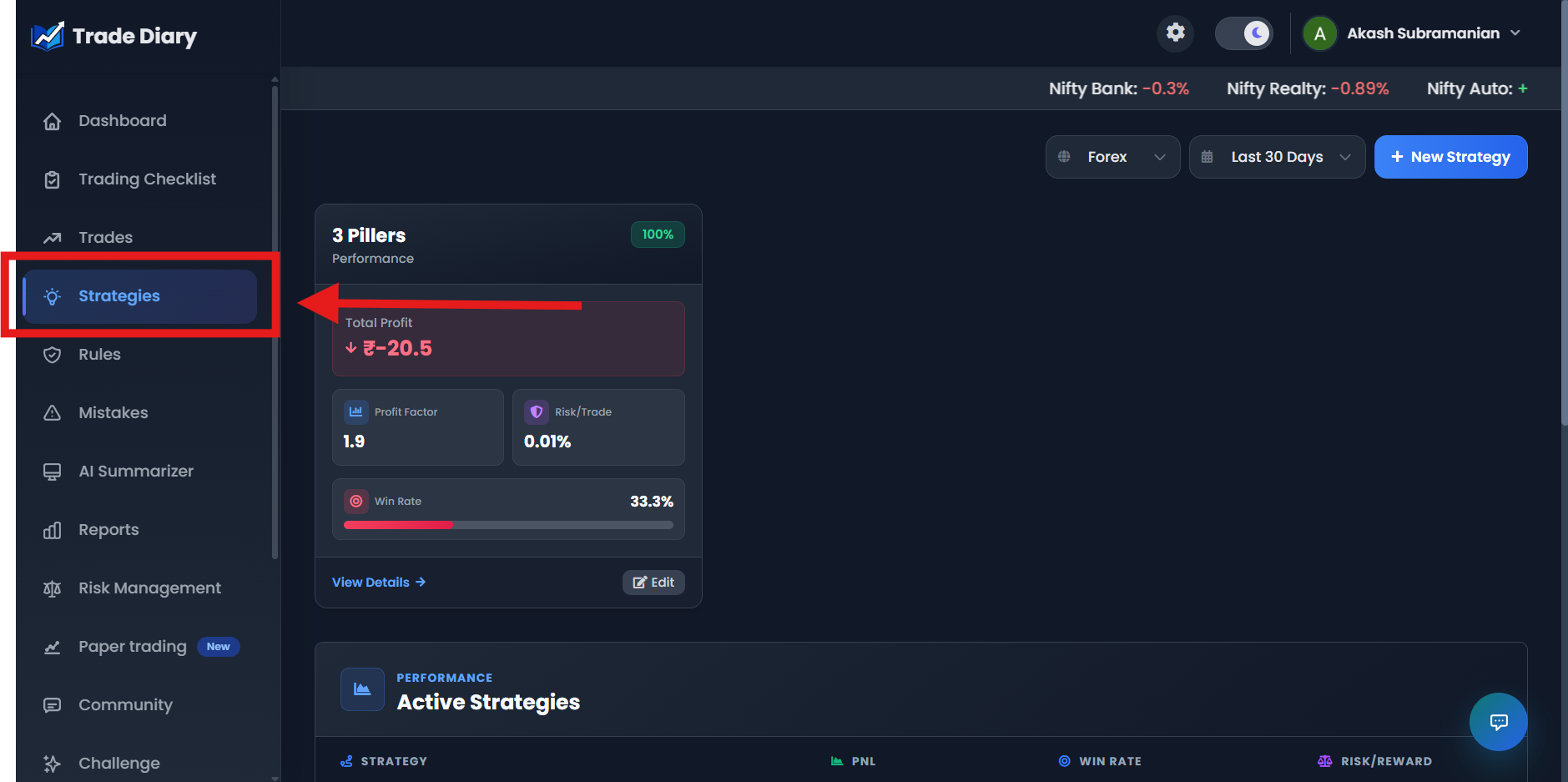
Dashboard side navigation with an arrow pointing to Strategies
01-navigate-to-strategies.pngSelect New Strategy
On the Strategies page, select the New Strategy button in the top-right corner. This opens the Add New Strategy window.
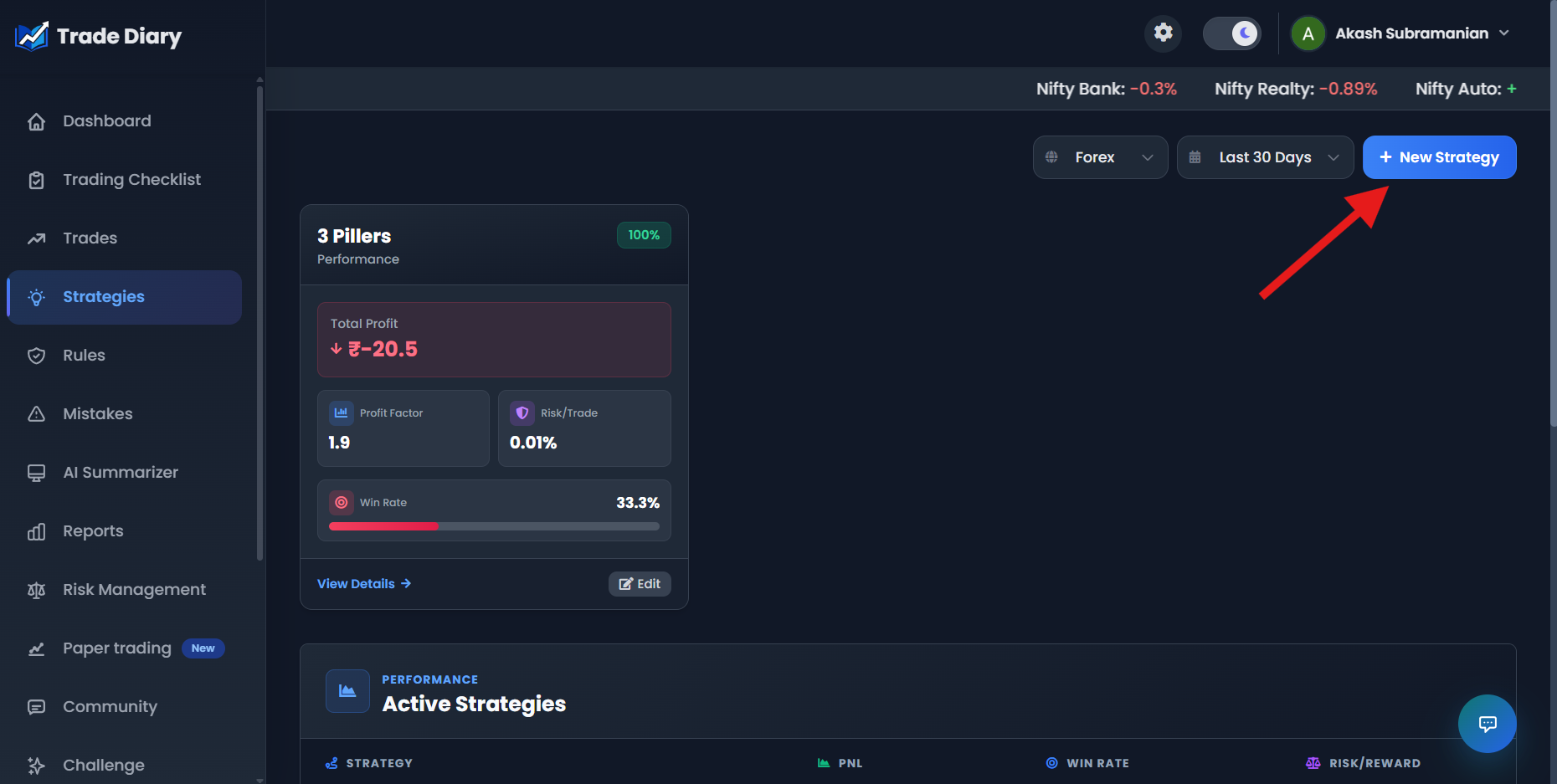
Strategies page with an arrow pointing to New Strategy
02-new-strategy-button.pngEnter the strategy name and description
In the Add New Strategy window, enter a Strategy Name and Description. Both fields are required. Select Add Strategy; the new strategy is saved and appears in My Strategies.
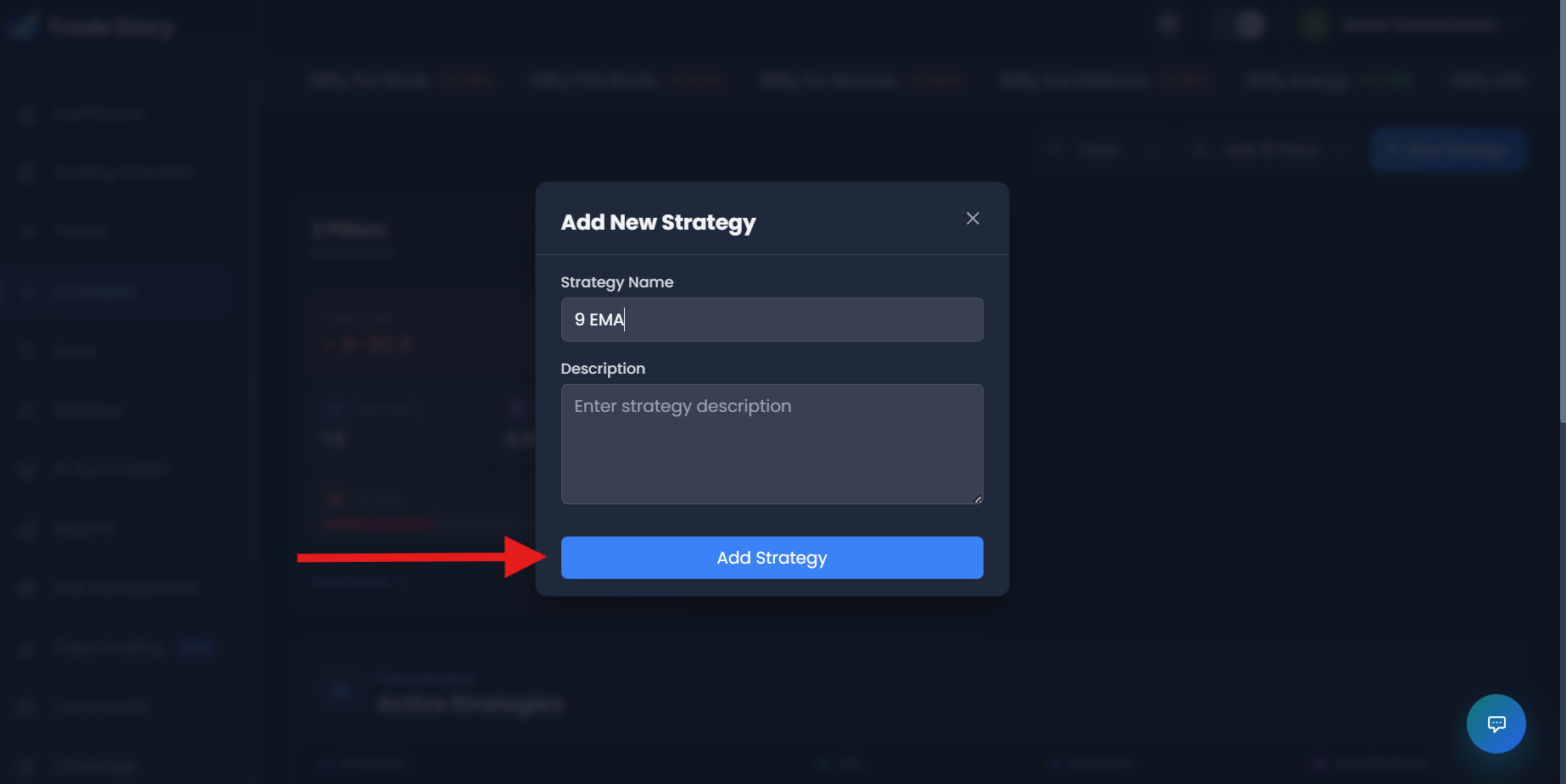
Add New Strategy window with Strategy Name, Description, and Add Strategy
03-add-new-strategy-popup.pngAssign the strategy to a new trade
Return to the Dashboard or Trades page and select New Trade. Complete the trade details, open the required Strategy dropdown, and select the strategy you created. Save the trade normally.
Only active, non-deleted strategies are available in the New Trade dropdown. If a strategy is missing, return to Strategies and confirm that its status is active.
Choose the strategy while logging the trade
Inside New Trade, open the Strategy dropdown and select the setup you used. The field is required, so the trade will be connected to strategy-level analytics when saved.
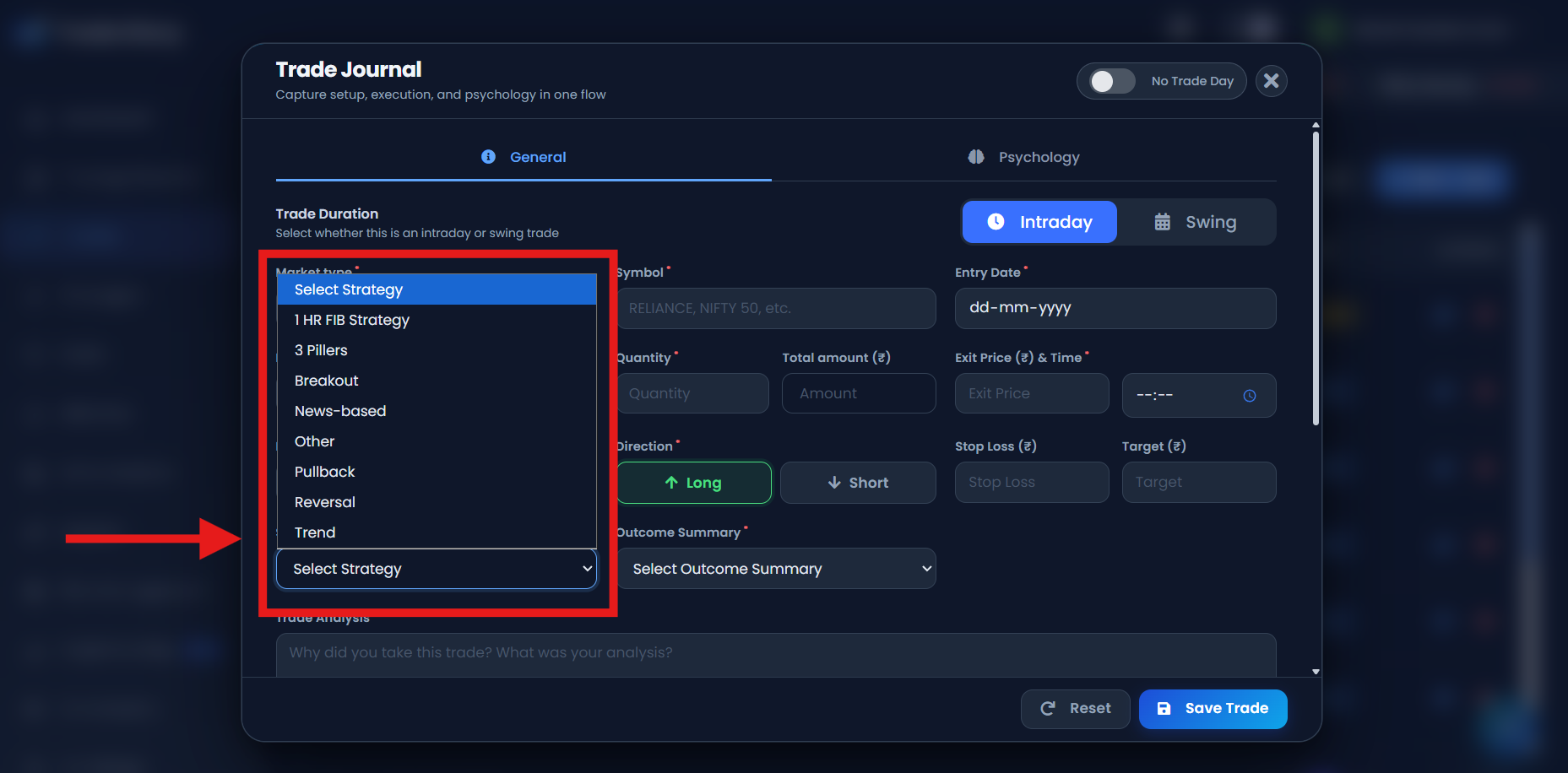
New Trade window with the Strategy dropdown open and highlighted
04-assign-strategy-in-new-trade.pngOne trade, one primary strategy
Select the strategy that best represents the actual entry setup. Keep supporting details—such as market context, adjustments, or execution notes—in the trade summary rather than creating duplicate strategy names.
Review performance by strategy
As assigned trades accumulate, the Strategies page turns those tags into comparable performance views. Use time-range and market filters to keep comparisons relevant, then review a strategy’s evidence rather than judging it from one result.
Total P&L
See the combined result produced by trades assigned to the strategy.
Win rate
Measure the percentage of assigned trades that closed profitably.
Profit factor
Compare gross profits with gross losses for the selected strategy.
Risk per trade
Review the average risk recorded across trades using the strategy.
Open View Details for strategy analytics
Return to Strategies and select View Details on a strategy. The details window shows its Win Rate, Profit Factor, Total Profit, Risk per Trade, and recent assigned trades.
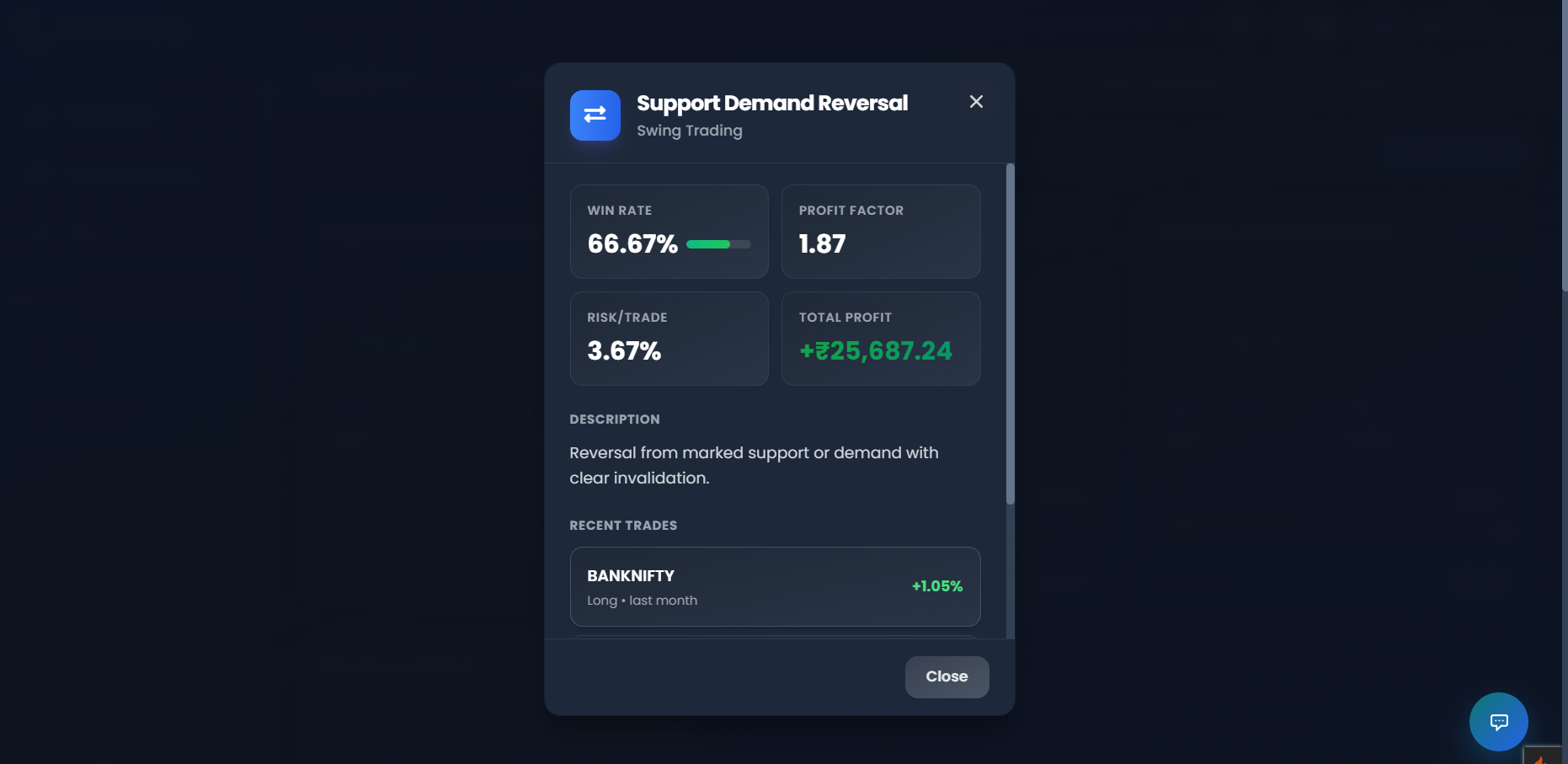
View Details showing Win Rate, Profit Factor, Total Profit, and Risk per Trade
05-strategy-performance-details.pngReview the numbers in context
- Check sample size: three trades are not as reliable as thirty.
- Use relevant filters: performance can differ by market type and time period.
- Open strategy details: connect summary metrics with the recent trades behind them.
- Compare process and outcome: a valid setup can lose, while a rule-breaking trade can win.
Edit, disable, or delete a strategy
The My Strategies table shows each strategy’s name, description, active status, and actions. Use Edit to improve the name or description. Switch a strategy off when you want to stop using it for new trades without removing its history.
You can delete an unused strategy after confirmation. If the strategy is already assigned to one or more trades, TradeDiary prevents deletion so those trades and historical analytics remain intact. In that situation, make the strategy inactive instead.
Edit
Correct or clarify the strategy name and description while keeping the same playbook entry.
Make inactive
Remove it from future New Trade dropdowns while retaining existing trade records.
Common strategy-tracking mistakes
Creating duplicate names. “Breakout,” “Breakout 1,” and “New Breakout” split one setup across several records.
Using categories that are too broad. “Options” describes an instrument, not necessarily a repeatable entry strategy.
Tagging after seeing the result. Assign the strategy you executed, even if another label would make the statistics look better.
Changing rules without a new version. If entry or risk logic changes materially, create a clearly named version so results remain comparable.
Judging a tiny sample. Avoid promoting or abandoning a strategy after only a few trades.
Ignoring inactive status. Only active strategies appear when assigning a strategy to a new trade.
Common questions
Do I have to choose a strategy when logging a trade?
Yes. The New Trade form marks Strategy as required. Assigning it ensures the trade contributes to meaningful strategy-level analytics.
Why is my strategy missing from New Trade?
Only active, non-deleted strategies appear in the dropdown. Open Strategies and check the strategy’s active-status switch.
Can I edit a strategy after assigning trades to it?
Yes. You can update its name and description. Avoid changing it into a completely different setup because existing trades remain connected to that strategy.
Why can’t I delete a strategy?
TradeDiary blocks deletion when the strategy is used by existing trades. Set it to inactive instead to preserve history while preventing future use.
Know which setups earn their place.
Create a clear playbook, assign every trade honestly, and let the data reveal what is repeatable.