How to enable Trade Time Input in TradeDiary
Record the exact time you entered and exited each manual trade, then use that detail to understand holding duration and time-of-day performance.
Quick answer
From the TradeDiary dashboard, select the settings cog in the top bar. In Advanced Settings, switch on Trade Time Input and select Save Settings. When you open New Trade, Entry Time and Exit Time will appear beside the corresponding price fields.
What is Trade Time Input?
Trade Time Input is an optional Advanced Settings feature for traders who want to record more than the calendar date. When enabled, TradeDiary adds an Entry Time field beside Entry Price and an Exit Time field beside Exit Price in the New Trade form.
The date tells you which trading day produced the result. The times tell you when the opportunity appeared, how long the position remained open, and which part of the market session contained the trade.
Entry Time
Records when the position was opened so the entry can be placed in its market-session context.
Exit Time
Records when the position was closed and completes the timeline for a finished trade.
Holding duration
The interval between entry and exit helps separate quick executions from longer holds.
Why exact trade times improve your journal
Two trades on the same date can have completely different contexts. One may be an opening-session breakout held for ten minutes; another may be a late-session entry held for several hours. Without time data, both are reduced to the same trading day.
What accurate times help you review
- Holding-period discipline: compare the intended trade duration with the time actually spent in the position.
- Time-of-day patterns: identify whether early, middle, or late-session trades behave differently.
- Exit efficiency: notice trades held too long after the original setup had finished.
- Repeatable routines: test whether your best setups appear during a consistent trading window.
Use the actual execution times from your broker history whenever possible. Estimated times can make duration and session analysis misleading.
Enable Trade Time Input: step by step
The preference is saved to your TradeDiary account and changes the manual New Trade form after the page reloads.
Open Advanced Settings
Sign in to TradeDiary and open the dashboard. In the top-right area of the top bar, select the round settings cog.
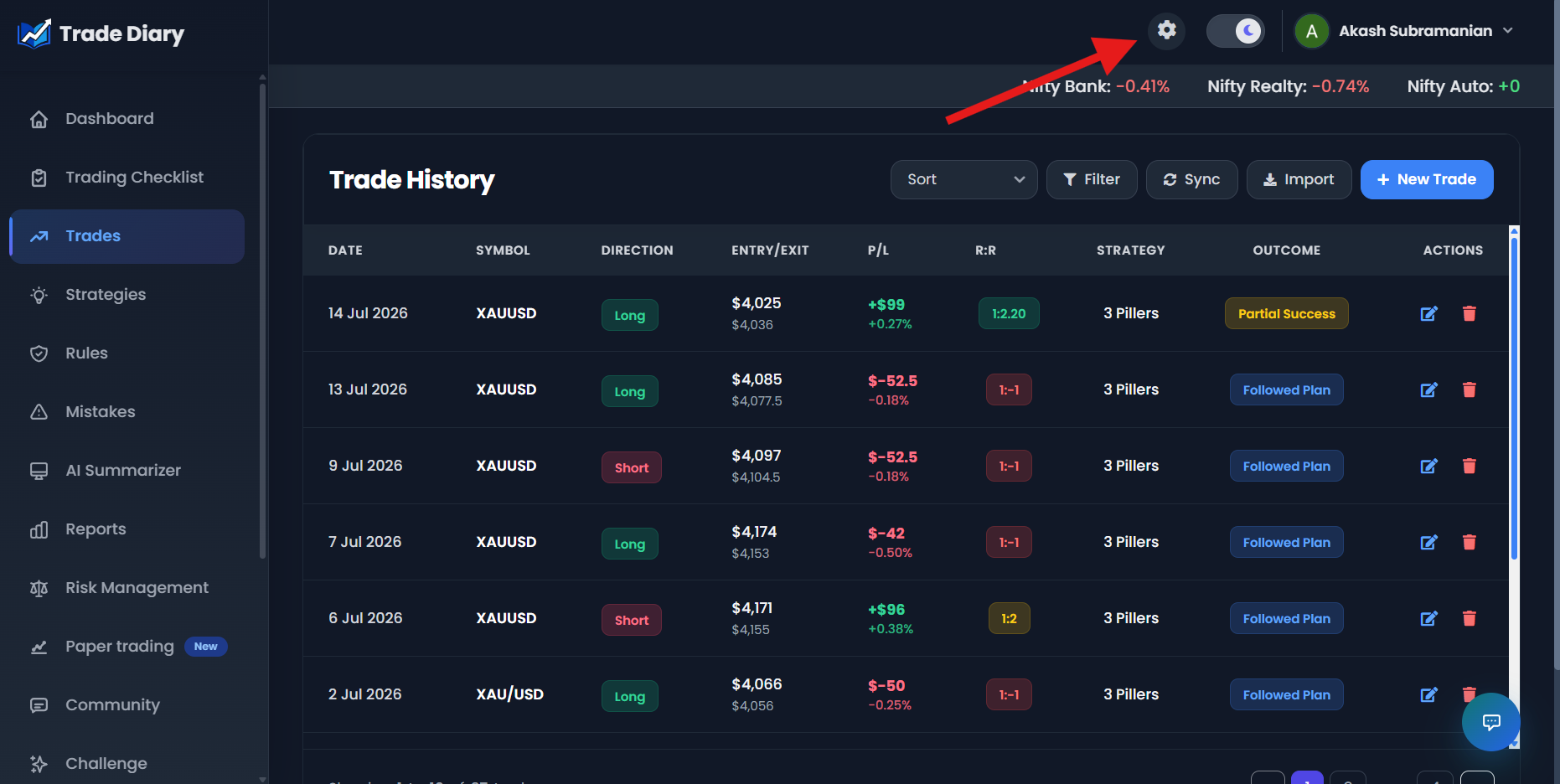
Dashboard with an arrow pointing to the Settings cog
01-open-advanced-settings.pngSwitch on Trade Time Input
The Advanced Settings window opens. Find Trade Time Input, described as “Configure custom trade entry and exit times,” and turn on its switch. Then select Save Settings.
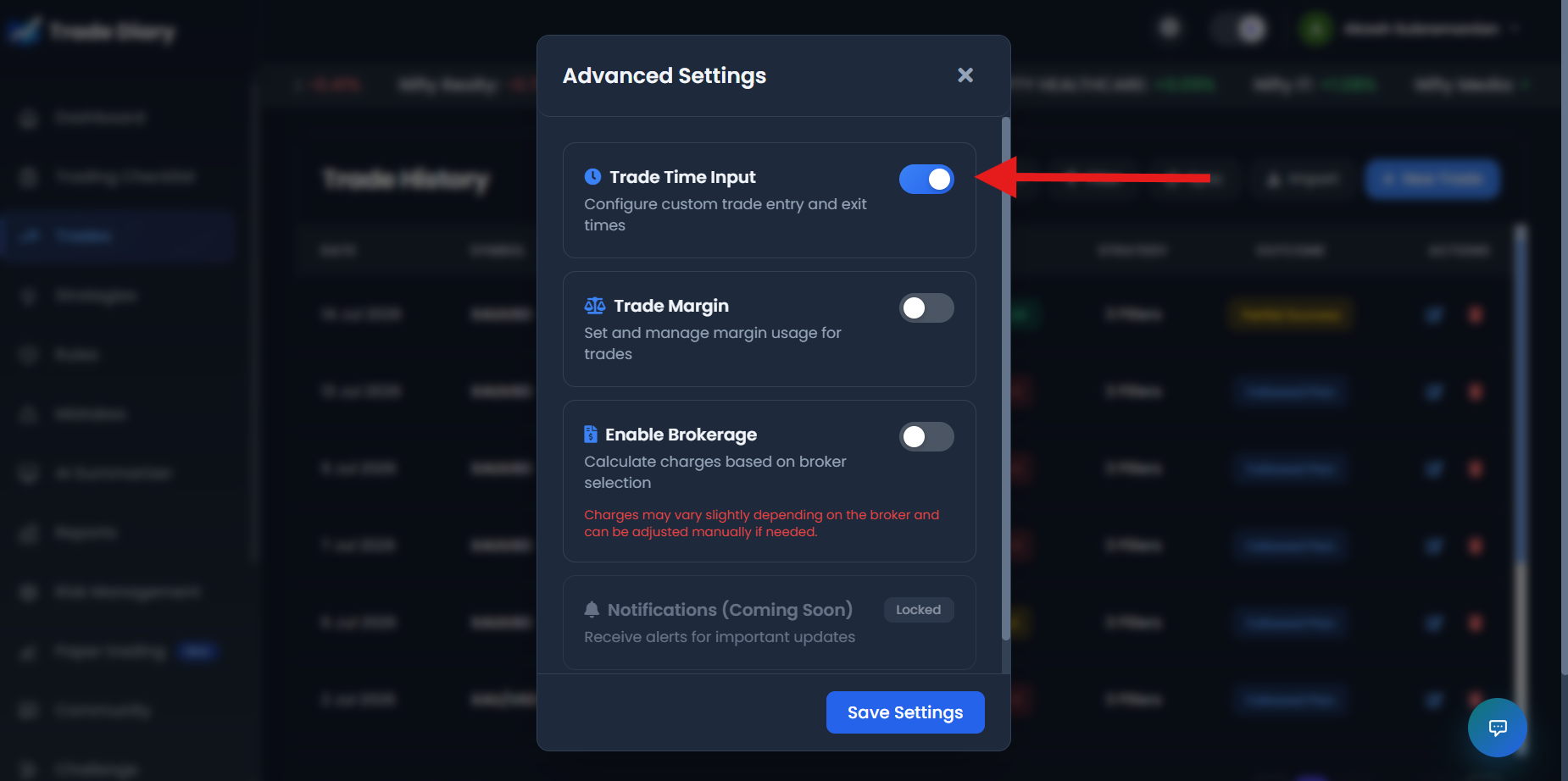
Trade Time Input switched on with Save Settings highlighted
02-enable-trade-time-input.pngLet the page reload
After the configuration is saved, TradeDiary closes Advanced Settings and reloads the current page. The Entry Time and Exit Time controls are then available when you open New Trade.
Enter the times when logging a trade
Select New Trade. The Entry Price row now contains an Entry Time control, and the Exit Price row contains an Exit Time control. Enter the time shown in your execution history rather than the time you later added the journal entry.
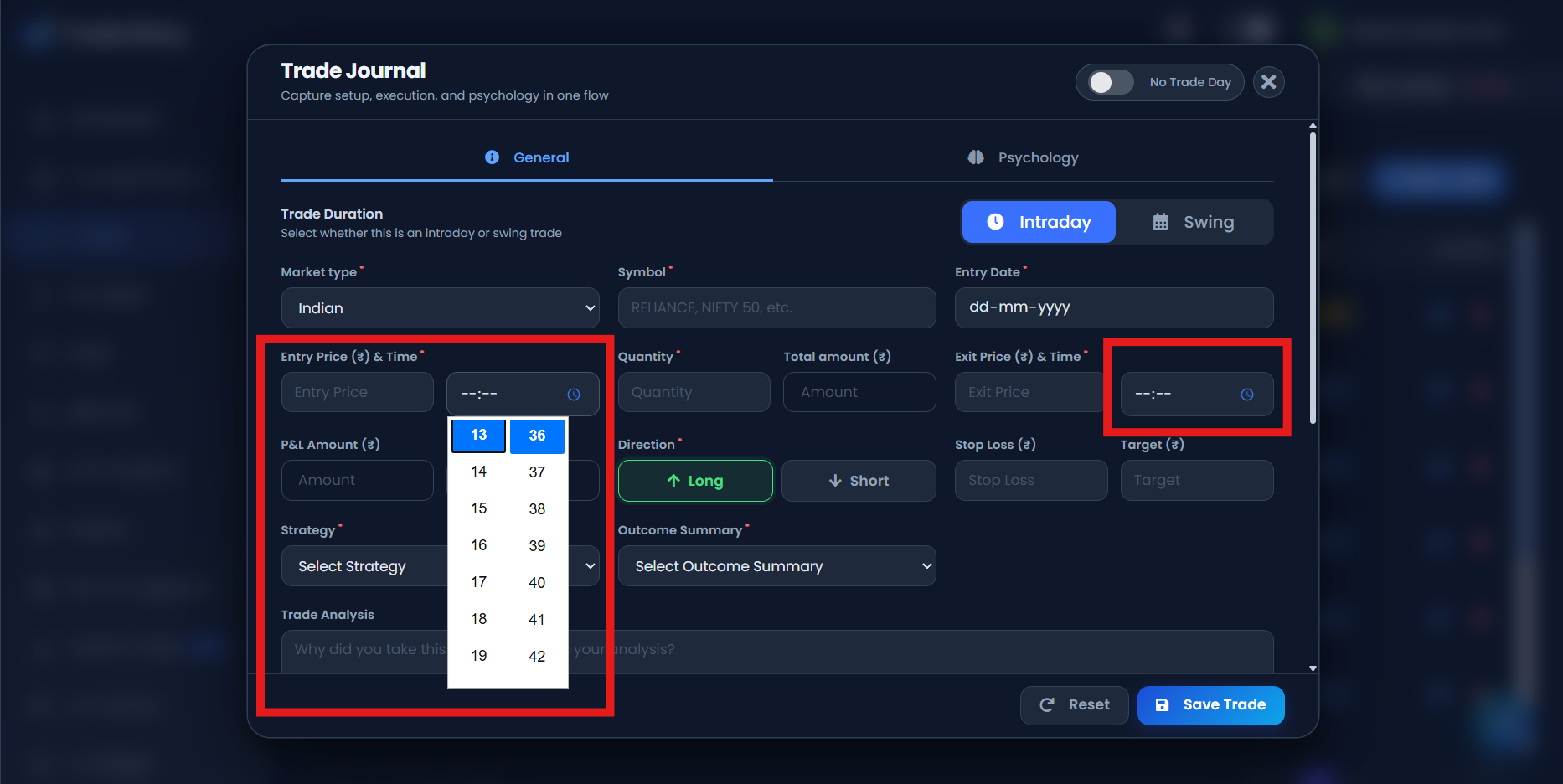
New Trade form with Entry Time and Exit Time highlighted
03-entry-and-exit-time-fields.pngKeep the sequence valid
For a same-day trade, Exit Time should not be earlier than Entry Time. If the trade spans dates, make sure the close date and exit time together occur after the entry date and time.
Use the recorded times in your review
Once trades contain reliable entry and exit times, time-based reports can add another layer to your performance review. Look for repeatable behavior over a meaningful sample rather than drawing a conclusion from one fast win or one long loss.
Duration Insights
Review how long trades remain open and whether duration differs between outcomes.
Hold Time vs Win Rate
Compare win-rate behavior across different holding-time groups.
Market Session Breakdown
Study performance in different parts of the trading session.
Questions worth asking
- Do profitable trades reach their objective faster than losing trades?
- Are late entries reducing the quality of otherwise valid setups?
- Does performance fall during a specific session or holding-time range?
- Are you holding losing trades longer than the strategy permits?
Common Trade Time Input mistakes
Entering the journaling time. Record when the broker executed the trade, not when you opened TradeDiary.
Rounding every trade to the same time. Approximate entries can create patterns that did not actually exist.
Reversing entry and exit. Check the complete date-and-time sequence before saving.
Ignoring overnight dates. An exit after midnight needs the correct close date as well as the exit time.
Common questions
Where do the time fields appear?
In New Trade, Entry Time appears beside Entry Price and Exit Time appears beside Exit Price after Trade Time Input has been enabled and saved.
Can I disable Trade Time Input later?
Yes. Return to Advanced Settings, turn off Trade Time Input, and save. This hides the manual time controls from the form; it does not rewrite previously stored trades.
Why are accurate times important?
They support holding-duration and market-session analysis. Inaccurate times can produce inaccurate patterns in those reports.
See when your edge performs best.
Enable Trade Time Input, record exact executions, and make time part of your trading review.