How to use Paper Trading in TradeDiary
Practice index and stock-options execution in PaperDesk, manage simulated positions, and review your paper performance without sending an order to your broker.
Quick answer
Open Paper trading from the TradeDiary side navigation. In PaperDesk, choose an index and expiry, locate a strike in the option chain, and select B or S on the Call or Put side. In the paper-order window, confirm Buy or Sell, lots, price type, and any stop-loss or target, then place the paper order.
What is paper trading?
Paper trading is simulated order execution used to practise a trading process without placing a real broker order. TradeDiary’s simulator is called PaperDesk. Its Index Options page displays an option chain and creates paper-only positions from the orders you submit.
The interface lets you rehearse instrument selection, direction, quantity, entry type, stop-loss, target, and position management. It also keeps paper positions, closed-trade performance, funds, and rankings together in a dedicated workspace.
Simulation
Practise execution and position management without sending a broker order.
Option chain
Select an index, expiry, Call or Put, and the strike you want to simulate.
Review
Track open P&L, closed results, win rate, and other paper-performance evidence.
PaperDesk clearly identifies the environment as “Paper only.” Its orders do not create, modify, or close positions in a connected brokerage account.
Why use PaperDesk before risking capital?
A strategy idea is not the same as a repeatable execution process. Paper trading gives you a place to practise the mechanics and collect examples before deciding whether an approach deserves further testing.
What you can practise
- Option-chain reading: find the underlying, expiry, strike, Call or Put, and current premium.
- Order preparation: choose Buy or Sell, lots, market or limit price, stop-loss, and target.
- Position management: monitor open paper P&L and practise reducing or closing a position.
- Process review: compare results and identify whether rules were repeatable over several trades.
Simulation is not identical to live execution
Real trading can include slippage, liquidity constraints, order rejection, latency, changing spreads, taxes, fees, and emotional pressure. Treat paper results as practice evidence—not a guarantee that live results will match.
Place an options paper trade: step by step
The first three screenshots cover the complete path from the TradeDiary dashboard to a prepared PaperDesk order.
Navigate to Paper trading
From the TradeDiary dashboard, select Paper trading in the left-side navigation. PaperDesk opens on Index Options, its index-options simulation terminal.
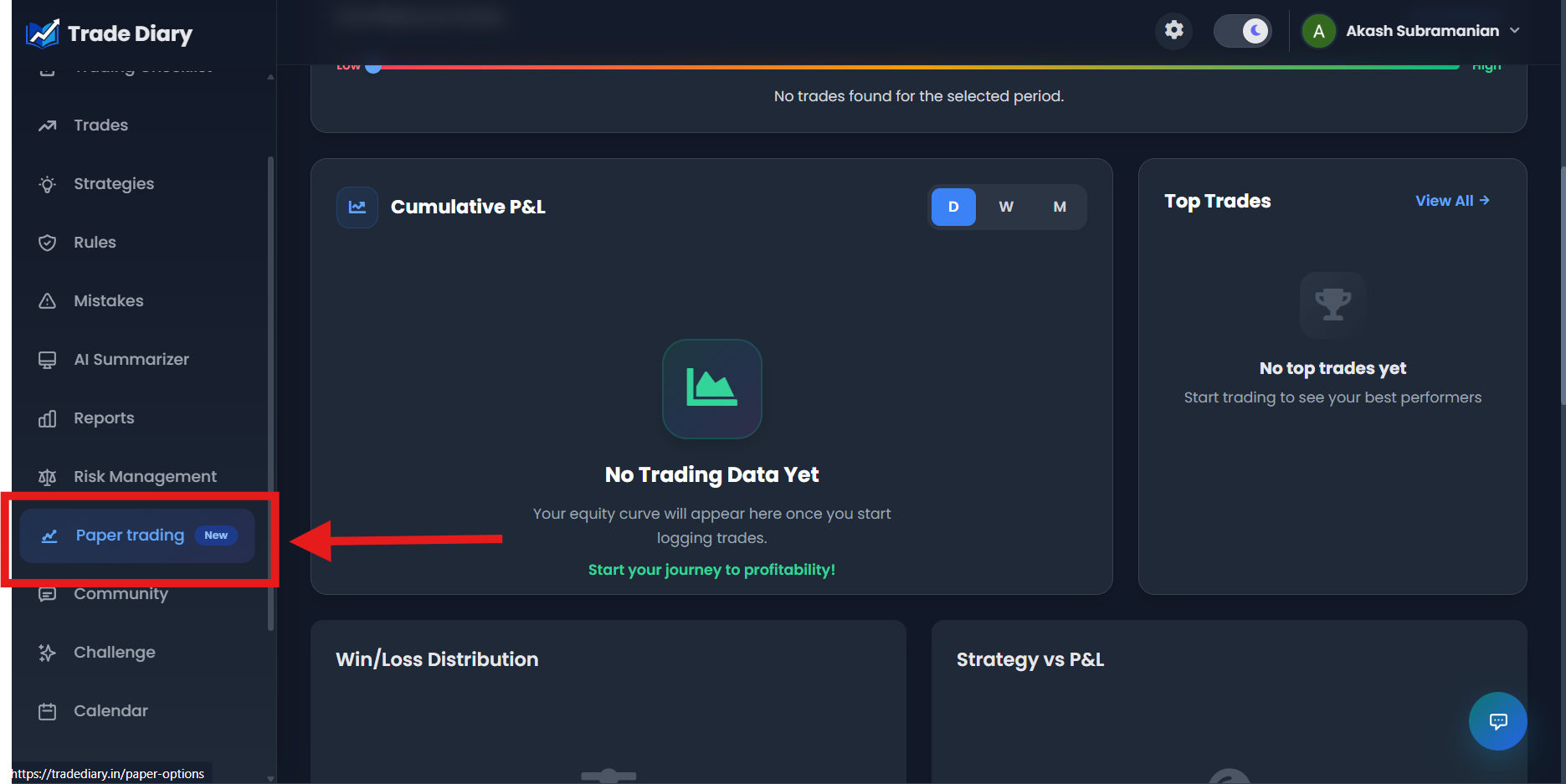
Dashboard side navigation with an arrow pointing to Paper trading
01-navigate-to-paper-trading.pngSelect the index, expiry, strike, and side
Use the selector above the option chain to choose the index, then choose an Expiry. Find the required strike in the centre column. On its Call or Put side, select B for a paper Buy or S for a paper Sell. Selecting the premium cell also opens an order with the relevant option side.
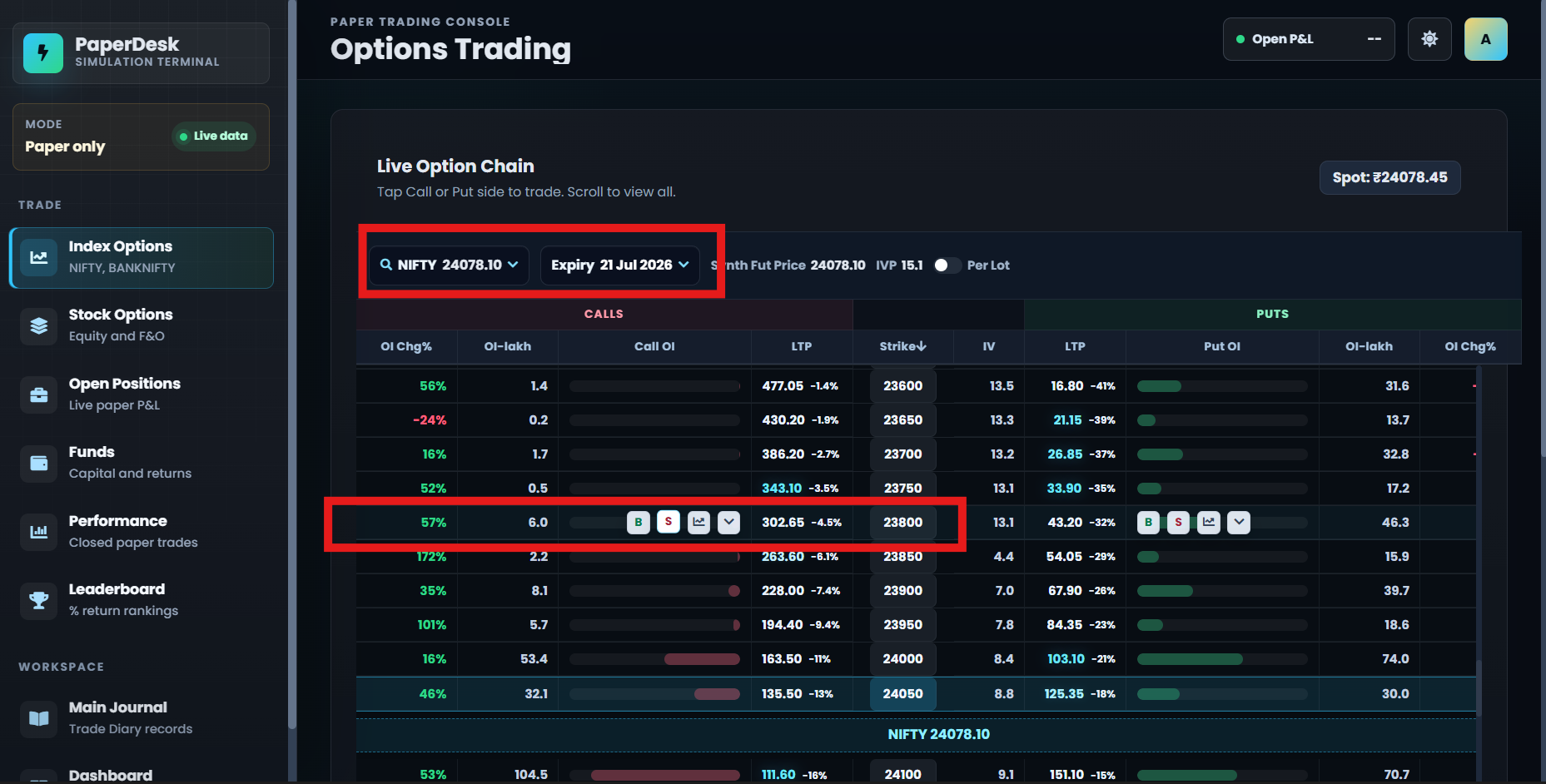
Index Options chain with index, expiry, strike, and B/S actions highlighted
02-select-index-strike-and-side.pngComplete the paper-order window
The popup identifies the selected underlying, strike, option type, and expiry. Review every value before placing the order—especially the Buy/Sell direction and the number of lots.
Buy or Sell
Switch the simulated order direction without returning to the option chain.
Quantity in lots
The popup displays the lot size and converts lots into the Actual Quantity.
Market or Limit
Use the current market premium or enter the premium for a limit order.
SL and Target
Optionally enable stop-loss and target using premium values, not strike prices.
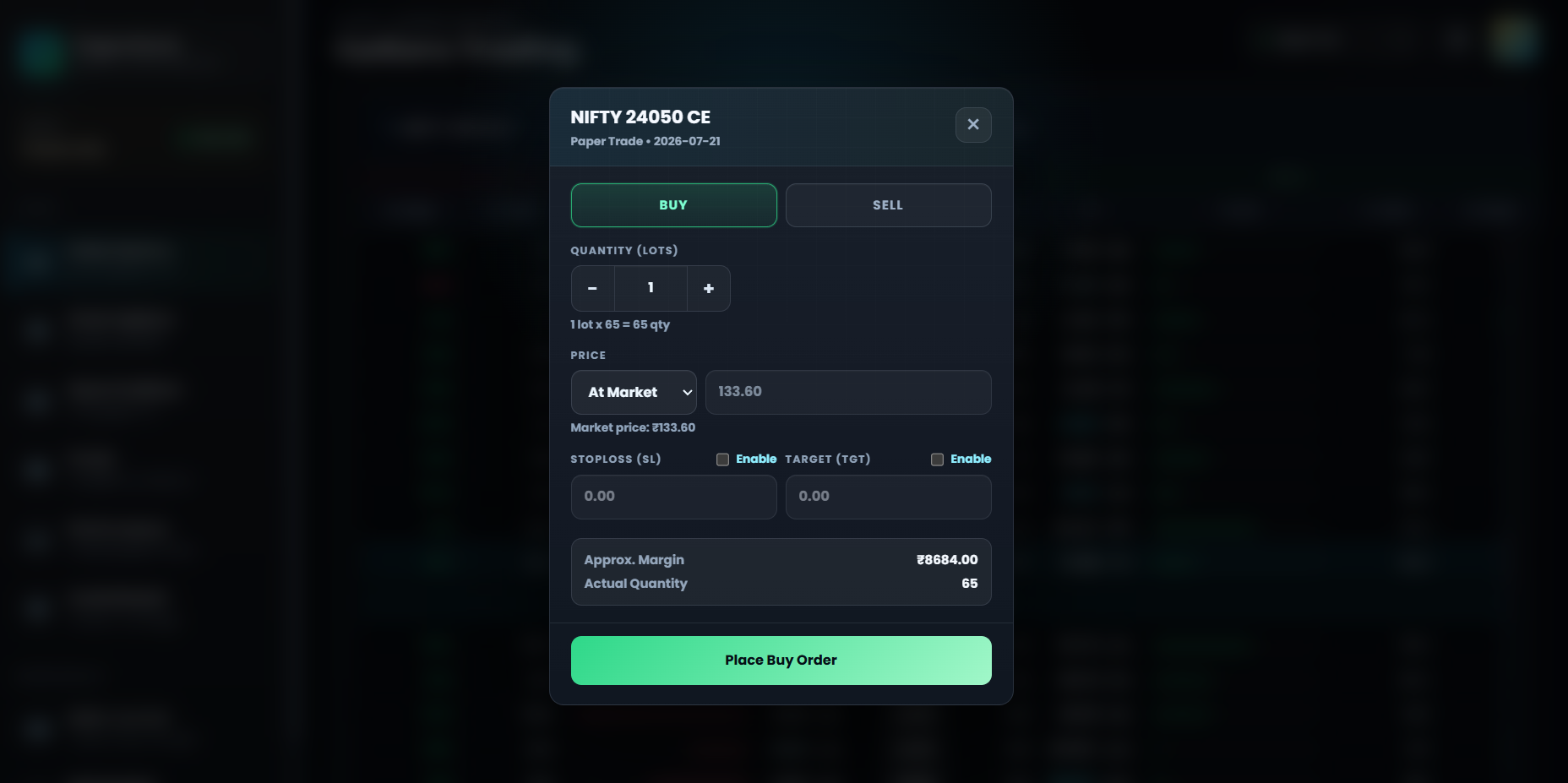
Paper-order popup with its complete order controls and Place Order button
03-paper-order-popup.pngFinal order check
- The title shows the intended index, strike, and CE or PE contract.
- The Buy or Sell toggle matches the trade thesis.
- Lots × lot size produces the expected Actual Quantity.
- Stop-loss and target, when enabled, are option-premium prices.
Use the complete PaperDesk workspace
PaperDesk separates simulation activity from the main trading journal. Its navigation lets you move from placing an order to monitoring positions and reviewing results.
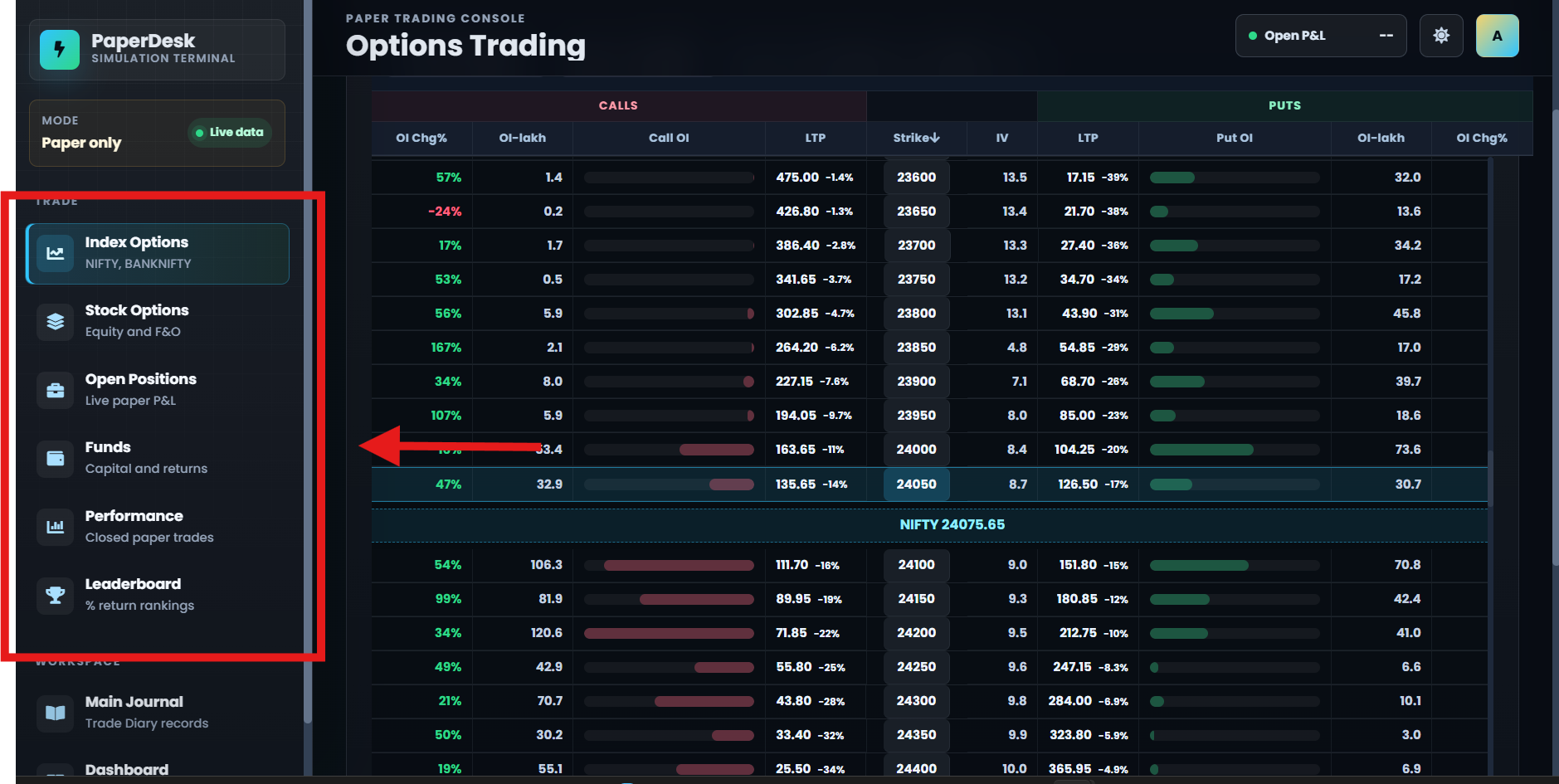
Complete PaperDesk navigation panel with every trading and workspace tab
04-paperdesk-navigation.pngPaper execution tools
- Index Options
- Stock Options
- Open Positions and live paper P&L
- Funds and capital activity
Performance and navigation
- Performance for closed paper trades
- Leaderboard for percentage-return rankings
- Main Journal shortcut
- Dashboard shortcut
Turn paper trades into useful evidence
Paper results become useful when the test has defined rules. Write down the setup, permitted instruments, entry trigger, quantity, stop-loss, target, and conditions for ending the test before you begin.
Use consistent sizing. Randomly changing lots makes strategy comparisons difficult.
Count every valid signal. Skipping difficult trades after seeing the result creates selection bias.
Review open and closed trades. P&L alone cannot show whether execution followed the plan.
Test a meaningful sample. Avoid declaring success after only a few favourable outcomes.
Common paper-trading mistakes
Choosing the wrong contract. Recheck index, expiry, strike, and CE or PE before placing the order.
Confusing strike with premium. Limit, stop-loss, and target inputs use the option premium.
Ignoring realistic fills. Paper execution cannot reproduce every liquidity, spread, and slippage condition.
Taking risks you would reject live. Oversized paper trades teach a different process from disciplined execution.
Focusing only on the leaderboard. Ranking does not replace strategy quality, risk control, or rule adherence.
Common questions
Does PaperDesk place a real broker order?
No. The Index Options page states that execution is paper-only and that no broker orders are placed.
Can I paper trade both index and stock options?
Yes. PaperDesk provides separate Index Options and Stock Options sections.
Where do I monitor an active paper trade?
Open the Open Positions section to monitor active paper positions and their live paper P&L.
Can paper results predict live results?
No. Paper trading is a practice and testing tool. Live execution and trading psychology can produce materially different outcomes.
Test execution before risking capital.
Open PaperDesk, define the rules, place paper-only orders, and review more than the final P&L.